
Windows DNS lookup is the process Windows systems use to translate domain names into IP addresses so browsers applications and network services can connect with the correct servers. It plays a critical role in website accessibility, email routing and enterprise network communication. When DNS resolution fails or becomes slow users often experience connectivity issues, delayed website loading or service outages.
IT administrators, developers and system engineers frequently analyze Windows DNS lookup behavior to diagnose resolution failures, monitor DNS traffic and verify domain record configurations. Understanding how Windows performs DNS queries helps maintain faster, secure and more reliable network performance.
What is Windows DNS Lookup?
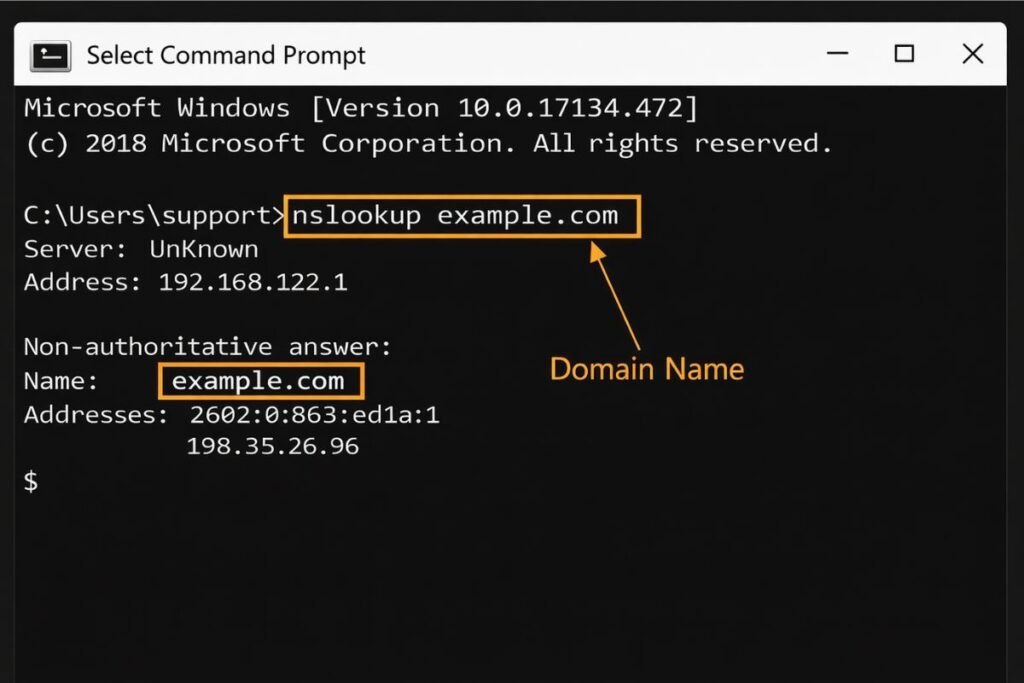
Windows DNS lookup is a name resolution mechanism that converts human readable domain names into machine readable IP addresses using Windows networking services.
The operating system performs DNS queries through built in utilities such as NSLookup, Resolve-DnsName, DNS Client Service and DNS Manager.
These tools allow administrators to monitor DNS traffic, validate resource records, troubleshoot slow DNS lookup issues and verify DNS propagation across networks.
Windows DNS lookup also supports forward lookup zones, reverse DNS lookup using PTR records and Active Directory integrated DNS infrastructure that improves network authentication and service discovery.
Understanding How Windows DNS Lookup Works?
Windows DNS lookup begins when a user or application requests access to a domain such as google.com. Windows forwards this request to the DNS Client Service which first checks the local resolver cache and hosts file to determine whether a previous DNS response already exists.
If the cache does not contain the requested record Windows sends the query to configured DNS servers. These servers search authoritative zones cached data or external root servers using recursive or iterative resolution methods.
Once the DNS server returns a response Windows stores the result in its cache based on TTL values to speed up future queries and reduce network traffic. Windows DNS lookup depends heavily on resolver caching root hints forward lookup zones and suffix search order.
The DNS suffix search list helps Windows append domain extensions automatically when resolving short hostnames inside enterprise networks. This architecture improves performance and ensures high availability when multiple DNS servers are configured.
Why Windows DNS Lookup Matters for Performance and Security?
Windows DNS lookup directly impacts website access speed, application availability and email delivery. Slow DNS lookup often results in delayed website loading or connection timeouts.
Misconfigured DNS records can block communication between internal systems and cloud services. DNS lookup monitoring also plays a major cybersecurity role.
Attackers frequently manipulate DNS responses to redirect traffic or inject malicious content. Tracking DNS queries helps identify suspicious domains unauthorized client behavior and malware activity targeting DNS infrastructure.
Administrators use Windows DNS logging and diagnostic tools to verify DNS server response accuracy, detect resolution delays and monitor recursive lookup performance across enterprise networks.
Using NSLookup Windows Command
NSLookup is one of the most widely used DNS lookup commands in Windows. It allows administrators to verify DNS records, confirm DNS propagation and troubleshoot domain resolution failures.
Running a simple forward lookup reveals domain IP addresses:
nslookup domainname.com
Reverse DNS lookup command helps identify domain names associated with IP addresses:
nslookup 8.8.8.8
Checking MX records helps validate email routing configuration:
nslookup -type=mx domainname.com
DNS TXT lookup allows verification of SPF DKIM and domain verification records:
nslookup -type=txt domainname.com
DNS SRV lookup helps locate domain controllers or service endpoints:
nslookup -type=srv _ldap._tcp.domainname.com
Windows DNS lookup also supports viewing complete DNS record sets:
nslookup -type=any domainname.com
PowerShell DNS Lookup Using Resolve Dns Name
PowerShell provides advanced DNS querying through Resolve DnsName. This command delivers structured output and supports automation.
Resolve-DnsName domainname.com
Reverse DNS lookup through PowerShell:
Resolve-DnsName 8.8.8.8 -Type PTR
PowerShell DNS lookup helps administrators automate DNS record validation, analyze DNS server response times and integrate DNS monitoring scripts inside enterprise workflows.
How to Find My DNS Server in Windows?
Windows allows users to verify configured DNS servers through network adapter settings or command line tools. The following command displays detailed DNS server configuration:
ipconfig /all
This command reveals DNS server IPs connection-specific suffixes DHCP assignments and adapter configuration. Understanding DNS server assignment helps diagnose name resolution failures and connectivity delays.
DNS Lookup Flow in Windows Resolution Process
Windows DNS lookup flow begins with DNS Client Service requesting resolution from local cache. When the cache fails to resolve Windows queries preferred DNS servers and gradually expands queries across configured adapters using adaptive time out intervals.
Windows dynamically tracks server response performance and prioritizes faster DNS servers. This lookup flow improves fault tolerance, reduces DNS resolution delays and prevents dependency on single server infrastructure.
DNS lookup flow also includes DNS suffix search order name devolution root hint processing and fallback recursive queries across upstream DNS servers.
Forward Lookup Zone and Reverse DNS Lookup in Windows
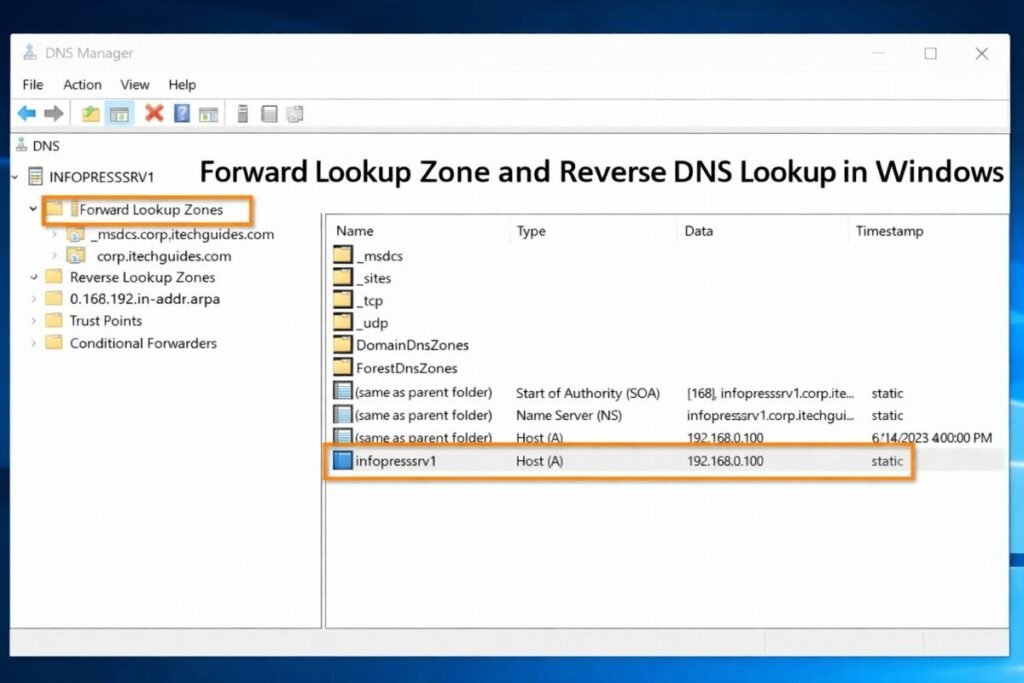
Forward lookup zone maps domain names to IP addresses using resource records such as A and AAAA. Reverse DNS lookup uses PTR records to map IP addresses back to domain names.
The forward lookup zone plays a critical role inside Windows DNS Manager by storing domain resolution records and supporting Active Directory service location. Reverse DNS lookup improves email reputation server authentication and network monitoring accuracy.
Windows DNS Logging and Query Monitoring
Windows provides advanced DNS logging capabilities that allow administrators to trace DNS queries and monitor DNS client activity.
DNS debug logging can be enabled inside DNS Manager to capture packet data, query source IP addresses, query status codes and resource record responses.
Logging helps administrators identify which client generated suspicious DNS requests and which domain triggered failed resolution attempts.
Windows also supports event tracing through DNS Client provider logs allowing real-time DNS lookup monitoring across Windows 10 Windows 11 and Windows Server environments.
Using DNSLookupView to Trace Windows DNS Queries
DNS Lookup View is a Windows DNS lookup monitoring tool that tracks every DNS query generated by Windows processes. It captures hostname query type process ID response result timestamp and DNS query status.
The tool operates using Microsoft Windows event tracing and displays DNS activity generated by applications background services and user initiated requests.
DNSLookupView helps administrators identify which process triggered external DNS traffic and supports exporting query logs for security analysis.
Fix Slow DNS Lookup Issues in Windows
Slow DNS lookup problems often originate from corrupted cache entries, unreachable DNS servers or incorrect forwarder configuration. Clearing local DNS cache improves resolution speed and eliminates outdated DNS responses.
ipconfig /flushdns
Testing DNS server connectivity helps verify network reliability and server availability. Switching between internal and external DNS servers using NSLookup allows administrators to compare DNS responses and isolate configuration problems.
Slow DNS lookup may also occur when DNS zone replication delays exist inside Active Directory or when conditional forwarding routes queries inefficiently.
DNS TXT Lookup and Record Verification
DNS TXT lookup validates domain ownership and email authentication records. Windows administrators frequently verify TXT records to confirm SPF policies, DKIM signatures and domain verification tokens used by cloud services.
Accurate TXT lookup ensures email deliverability protects domain reputation and supports SaaS service authentication workflows.
DNS Server Roles in Windows Active Directory
Windows DNS servers integrate deeply with Active Directory domain services. DNS SRV records help domain-joined devices locate domain controllers and authentication services.
Active Directory DNS supports secure dynamic updates, zone replication across domain controllers and centralized namespace management.
DNS misconfiguration inside Active Directory environments can disrupt authentication services and network resource discovery.
Windows DNS Lookup vs Online DNS Lookup Tools
Windows DNS lookup provides direct system level diagnostics allowing administrators to test DNS responses from specific configured DNS servers. Online DNS lookup tools help verify global DNS propagation and compare responses from multiple geographic locations.
Combining Windows DNS commands with online DNS lookup tools provides a complete view of domain resolution accuracy and DNS record consistency.
Windows DNS Cache Behavior and TTL Management
Windows stores DNS responses in the resolver cache based on Time-To-Live values defined in DNS records. Proper TTL management reduces DNS query load and improves network performance. However, cached records may delay DNS updates if TTL values are too high.
Administrators often flush DNS cache or adjust TTL values when testing DNS migration record updates or troubleshooting slow DNS lookup problems.
Windows DNS Lookup Troubleshooting Strategy
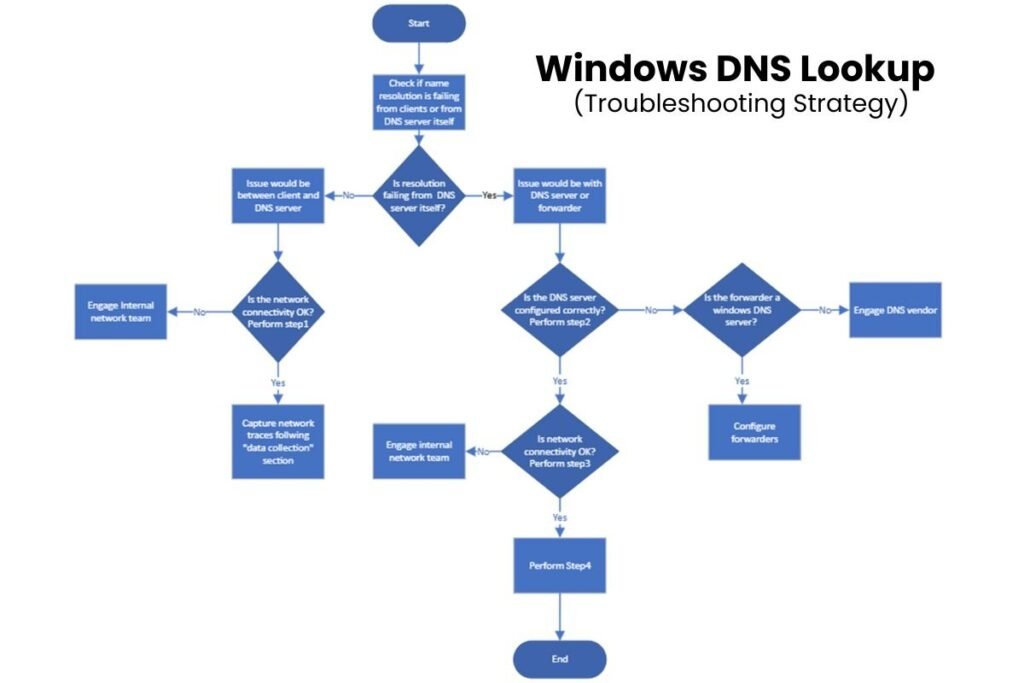
Windows DNS troubleshooting begins by verifying DNS server assignment testing DNS record resolution checking cache behavior and monitoring server response times.
Administrators often combine NSLookup Resolve DnsName DNS event logs and packet tracing to identify resolution failures.
Monitoring DNS propagation verifying DNS zone configuration and validating DNS forwarders help resolve external resolution errors and domain connectivity failures.
Conclusion
Windows DNS lookup forms the backbone of modern network communication. It controls how systems discover websites, email servers, cloud platforms and internal resources.
Efficient DNS lookup improves system performance, strengthens cybersecurity visibility and ensures stable enterprise connectivity.
At Seosharp we continuously explore DNS lookup optimization strategies and advanced troubleshooting approaches to help businesses maintain reliable network infrastructure.
Proper DNS monitoring combined with accurate record validation ensures consistent domain resolution and improved user experience across digital environments.
FAQs
How do I check DNS server response time in Windows?
Windows DNS response time can be checked using NSLookup or Resolve-DnsName commands. These tools show how quickly a DNS server responds to queries. Slow response time usually indicates network latency overloaded DNS servers or connectivity issues.
Can Windows DNS lookup help verify domain propagation status?
Windows DNS lookup helps verify whether DNS changes have propagated across different servers. By querying multiple DNS servers users can confirm updated IP addresses or record changes. This method is useful after domain migration or DNS record updates.
How does DNS caching affect Windows DNS lookup results?
DNS caching stores previously resolved domain information to speed up future queries. Cached records may show outdated results if DNS changes were recently made. Clearing cache using the flush DNS command forces Windows to retrieve fresh DNS data.
Can Windows DNS lookup identify CDN or load balancing configurations?
Windows DNS lookup can reveal multiple IP addresses linked to a single domain. Multiple IP results often indicate CDN distribution or load balancing setup. This helps users understand traffic routing and server distribution strategies.
Why does Windows DNS lookup return different IP addresses for the same domain?
Different IP addresses appear when domains use CDNs load balancing or geo-based routing. DNS servers return IPs based on user location and server availability. This improves website speed and reliability.
How often should I clear DNS cache in Windows?
DNS cache should only be cleared when troubleshooting connectivity or record update issues. Frequent clearing is usually unnecessary because Windows automatically manages cache expiration. Manual flushing is helpful after DNS configuration changes.