
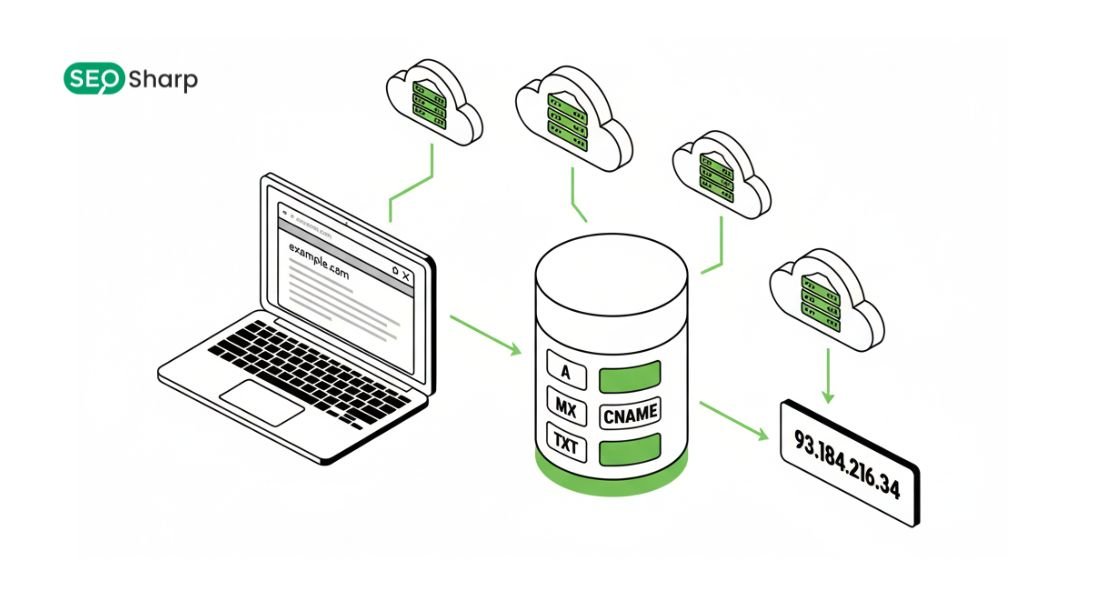
DNS (Domain Name System) acts as the internet’s backbone but when it breaks your entire infrastructure halts. While many admins still cling to the legacy nslookup tool modern systems require a more robust approach. If you are experiencing delays, understanding how to fix slow DNS lookup starts with using the right tools.
In this guide you will master PowerShell DNS lookup using the Resolve-DnsName cmdlet. You will learn how to bypass local caches, perform bulk lookups and automate troubleshooting like a pro.
Summary of Key Concepts
- The Power of Resolve-DnsName: Why this cmdlet replaces nslookup and dig for Windows admins.
- Essential Syntax: The core commands you need for daily troubleshooting.
- Troubleshooting Scenarios: How to handle MX records PTR (Reverse Lookups) and DNSSEC.
- Automation: Using PowerShell loops to verify DNS propagation across multiple servers.
- Bypassing Bottlenecks: Using -NoHostsFile and -DnsOnly to see the “real” internet.
PowerShell vs. NSLookup: Why Make the Switch?
For decades nslookup was the go-to tool. However it lacks “Object-Oriented” capabilities. PowerShell’s DNS Resolve Command returns a DnsRecord Object which you can filter, export to CSV or pipe into other commands.
| Feature | NSLookup | Dig (Linux) | Resolve-DnsName (PowerShell) |
| Output Format | Raw String (Text) | Text Stream | Rich Object (DnsRecord) |
| IPv6 Support | Basic | Native | Native & Advanced |
| Automation | Difficult | Moderate | Seamless (Pipeline Friendly) |
| Bypass Cache | No | Yes | Yes (via -CacheOnly) |
Getting Started: Basic Windows DNS Lookup!
To perform a basic Windows DNS lookup you only need the domain name. This command queries your default DNS server and returns the IP addresses. Understanding what a DNS forward lookup zone is becomes much easier when you see how PowerShell maps names to IPs directly.
PowerShell
# Basic A and AAAA record lookup
Resolve-DnsName -Name google.com
This command pulls data from the authoritative source or your configured resolver. But real-world troubleshooting requires more precision.
Deep Dive: Querying Specific Record Types!
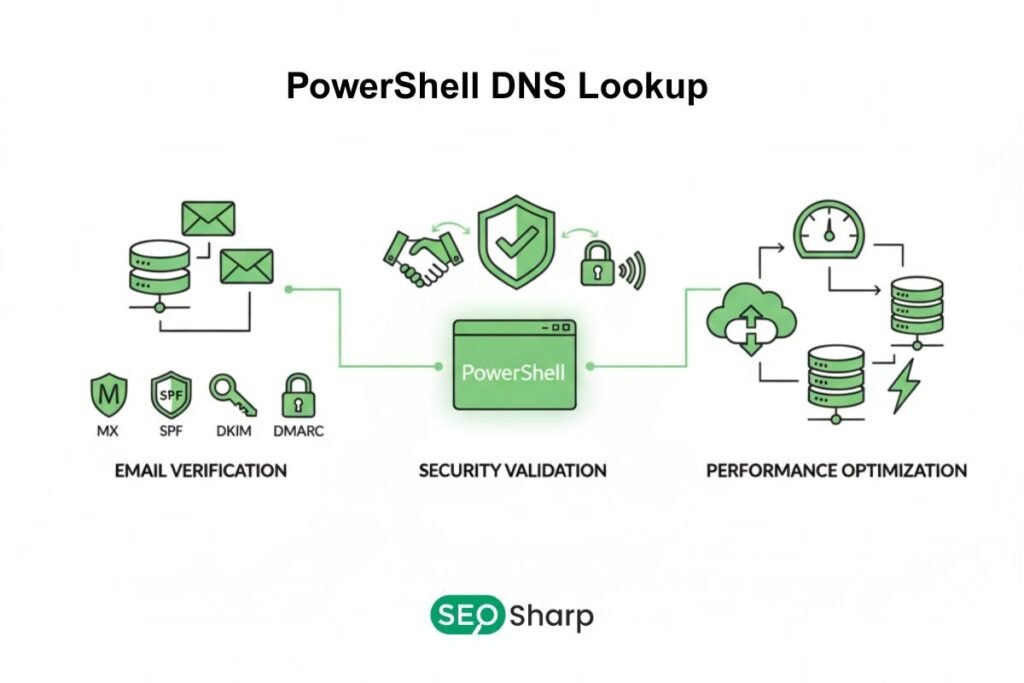
If you need to verify email routing or domain ownership use the -Type parameter. This is essential for a proper DNS TXT Lookup or when performing a DNS SRV lookup to find specific network services like Active Directory controllers.
PowerShell
# Query Mail Exchange (MX) records for email troubleshooting
Resolve-DnsName -Name microsoft.com -Type MX
# Perform a TXT lookup for SPF/DKIM verification
Resolve-DnsName -Name google.com -Type TXT
Advanced Troubleshooting: Bypassing Local “Noise”
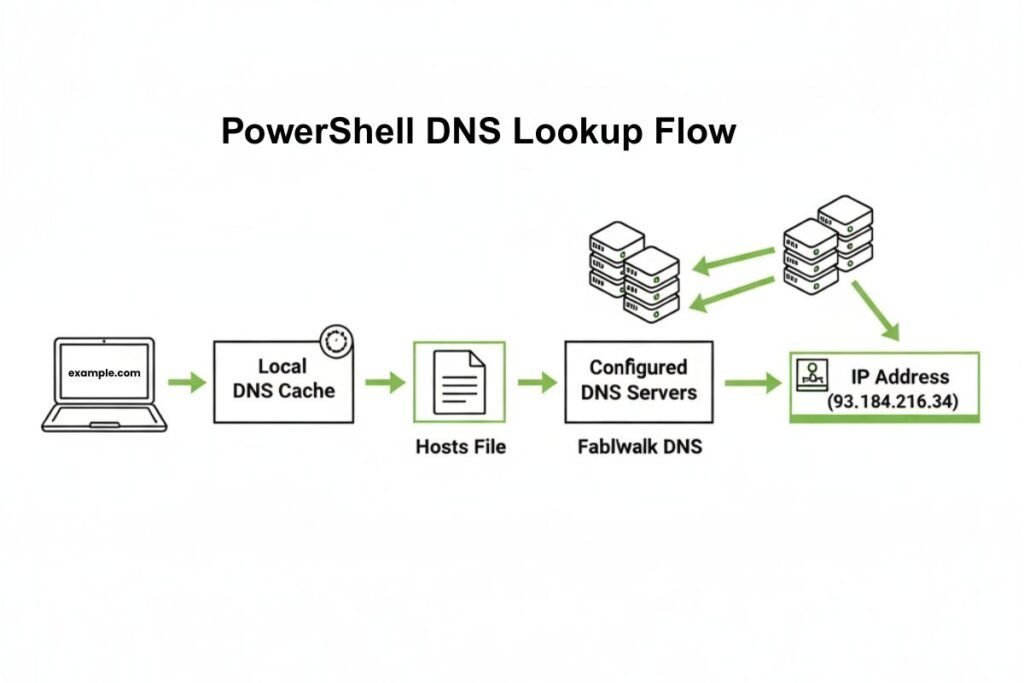
One of the most critical mistakes beginners make is trusting the local system’s response. Your computer often lies because of the Hosts file or the Local DNS Cache.
Bypassing the Hosts File
If a developer manually mapped a domain a standard query will show that local IP. To see the true external state use:
PowerShell
Resolve-DnsName -Name mysite.com -NoHostsFile
Bypassing NetBIOS and LLMNR
In local networks Windows may fall back to legacy protocols. To stick to “Pure DNS” add the -DnsOnly switch. This logic is similar to why engineers disable DNS lookup on a switch or disable DNS lookup Cisco environments to prevent broadcast delays:
PowerShell
Resolve-DnsName -Name webserver01 -DnsOnly
Using a Specific DNS Server
You can force a Cloudflare DNS lookup (1.1.1.1) or query Google (8.8.8.8) to check if your ISP is the bottleneck. This helps you answer “How to find my DNS server” by comparing local results with global ones.
PowerShell
Resolve-DnsName -Name example.com -Server 1.1.1.1
Reverse DNS: Mapping IP to Hostname
A reverse DNS lookup command is vital for verifying server identities and preventing email spam. Whether you need a standard check or an IPv6 reverse DNS lookup PowerShell simplifies the process.
PowerShell
# How to lookup DNS name from IP address (PTR Record)
Resolve-DnsName -Name 8.8.8.8
Automation for IT Pros: The “Unique” Value
IT Professionals rarely check just one domain. You can automate the process far more efficiently than a manual Linux lookup DNS check or a custom Python DNS lookup script.
Check DNS Propagation (Script)
This script verifies consistency across multiple global providers:
PowerShell
$Servers = @(“8.8.8.8” “1.1.1.1” “9.9.9.9”)
foreach ($S in $Servers) {
Write-Host “Checking against DNS Server: $S” -ForegroundColor Cyan
Resolve-DnsName -Name google.com -Server $S | Select-Object IPAddress }
Performance & Error Handling
Understanding what does DNS lookup failed mean is the first step in debugging. If a DNS lookup failed error persists use -QuickTimeout to prevent your scripts from hanging on unresponsive servers:
PowerShell
Resolve-DnsName -Name slow-site.com -QuickTimeout
For high-performance applications needing only the IP use the .NET class directly:
PowerShell
[System.Net.Dns]::GetHostAddresses(“google.com”)
Conclusion
PowerShell DNS lookup is a complete diagnostic engine. By mastering Resolve-DnsName you can bypass local overrides and automate network verification. To understand how your query travels through the internet, always keep a DNS lookup flow diagram labelled with root and authoritative servers in mind.
Modernizing your workflow by moving from nslookup to PowerShell ensures accuracy and scalability. For those times you are away from a terminal the SEOSharp DNS Lookup tool provides a perfect visual alternative translating these complex results into an easy-to-read web interface.
FAQs
Does Resolve-DnsName work on PowerShell Core (Linux/Mac)?
No Resolve-DnsName is a Windows-specific cmdlet. For non-Windows environments you should use the native dig command or the cross-platform .NET [System.Net.Dns] class to perform your queries effectively.
How do I clear my DNS cache before running a lookup?
You should use the Clear-DnsClientCache command in PowerShell to wipe the local resolver’s memory. This ensures that your next query fetches fresh data from the nameserver rather than showing outdated local results.
What is the “DnsRecord” object exactly?
Unlike the text output of nslookup the DnsRecord object is a structured data set. This allows you to easily pipe the results into other PowerShell cmdlets like Select-Object or Export-CSV for professional automated reporting.
Can I check DNSSEC status with PowerShell?
Yes, by using the -DnssecOk parameter you can request DNSSEC information for any domain. If the zone is signed PowerShell will return the digital signatures and validation bits to verify the record’s authenticity.
Why does PowerShell show multiple IP addresses for one domain?
Many modern websites use Round Robin DNS or CDNs to distribute traffic across various servers. PowerShell returns all associated A or AAAA records to show you every available entry point for that specific host.