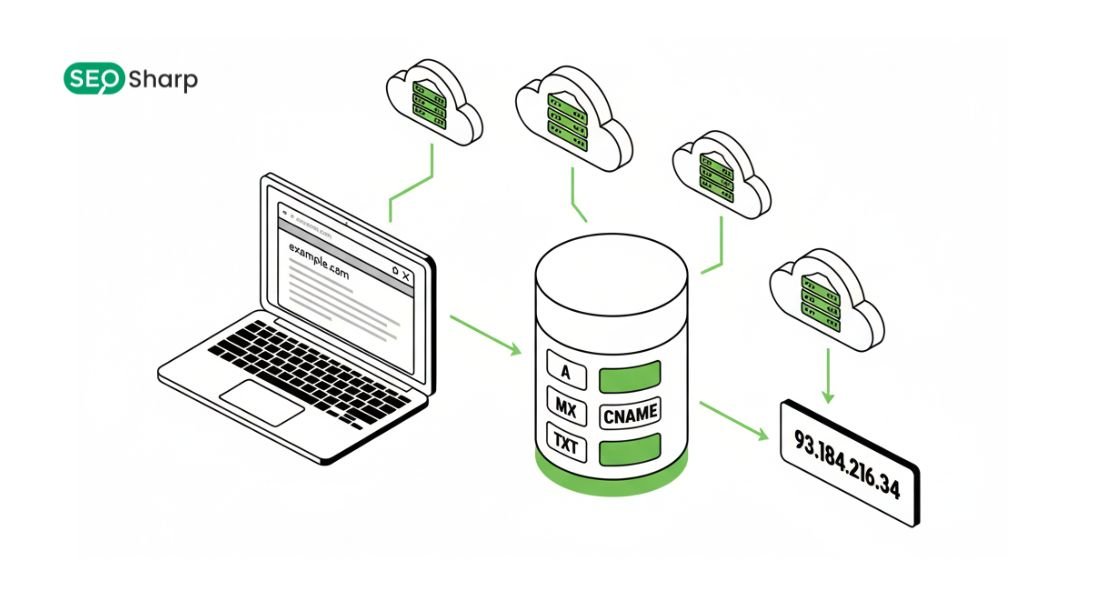

DNS (Domain Name System) is the silent pillar of the internet. It determines whether a user stays on your site or bounces in frustration. When a DNS response lags users perceive it as a slow internet connection or a broken website. Often customers abandon a site before it even begins to load.
In this comprehensive guide we explore how DNS resolution works, analyze transport time and identify the factors that trigger lookup delays. We also provide professional tools and commands to help you measure and optimize performance effectively.
Summary of Key Concepts
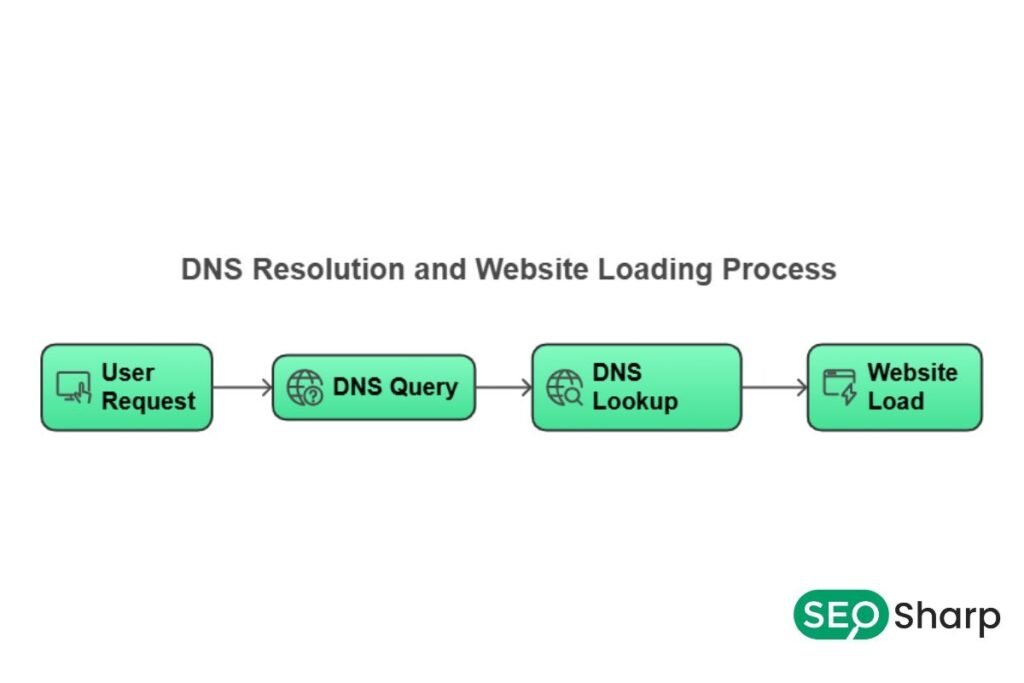
- Defining DNS Lookup Time: The duration between a computer requesting a DNS record and receiving the correct response.
- What Does Slow DNS Mean?: A delay in resolution that negatively impacts user experience and SEO metrics like Largest Contentful Paint (LCP).
- Factors Involved in DNS Lookup Time: Internet connectivity server latency physical distance and local configuration errors.
- Troubleshooting Slow DNS Problems: Utilizing network diagnostics (ping traceroute) and advanced application tests (dig PowerShell DNSPerf).
- Best Practices for Fast DNS: Leveraging Anycast networks optimizing TTL values and implementing CNAME flattening.
Defining DNS Lookup Time
When you type a URL into your browser your computer must first find the corresponding IP address. The “DNS Resolver” handles this task. The resolver first queries Root Servers, moves to TLD (Top-Level Domain) servers and finally retrieves the actual IP address from the Authoritative DNS server.
The total time for these steps is the “DNS Lookup Time.” Professionals consider a process under 50ms as “Lightning Fast.” If it exceeds 150ms users start noticing a delay. Every hop (step) adds to your total page load time.
The Anatomy of a DNS Query (Recursive vs. Iterative)
Understanding the distinction between query types is vital for troubleshooting. When your device sends a Recursive Query it demands a complete answer from the resolver. If the resolver doesn’t have the data it performs an Iterative Query, touring the Root TLD and Authoritative servers on your behalf.
Delays often occur during this “negotiation” phase. If your resolver lacks a robust cache or sits too many network hops away each iterative step adds cumulative latency. This is why local caching and choosing a resolver with high cache-hit ratios are non-negotiable for high performance.
Practical Considerations When Investigating Slow Lookups
When investigating slow DNS you must identify where the latency occurs. In corporate networks DNS delays are often layered:
- Resolver Behavior: Overloaded internal DNS servers or poor caching policies force every query “upstream” causing significant delays.
- Network Topology: Hairpin routing or traffic passing through unnecessary proxies adds extra network hops.
- Application-Level Caching: Sometimes browsers or Java-based applications ignore the system cache and initiate their own lookups complicating the troubleshooting process.
The Impact of DNSSEC on Lookup Speed
Security often comes at a price. DNSSEC (Domain Name System Security Extensions) adds digital signatures to your DNS records to prevent spoofing. While essential for security it increases the size of DNS responses.
Larger packets can lead to UDP fragmentation forcing the request to switch to TCP which requires a multi-step handshake. This “security tax” can add 20-40ms to your lookup time. To mitigate this ensure your DNS provider supports Elliptic Curve Cryptography (ECC) which offers smaller signatures and faster verification than traditional RSA keys.
Causes and Effects of Slow DNS
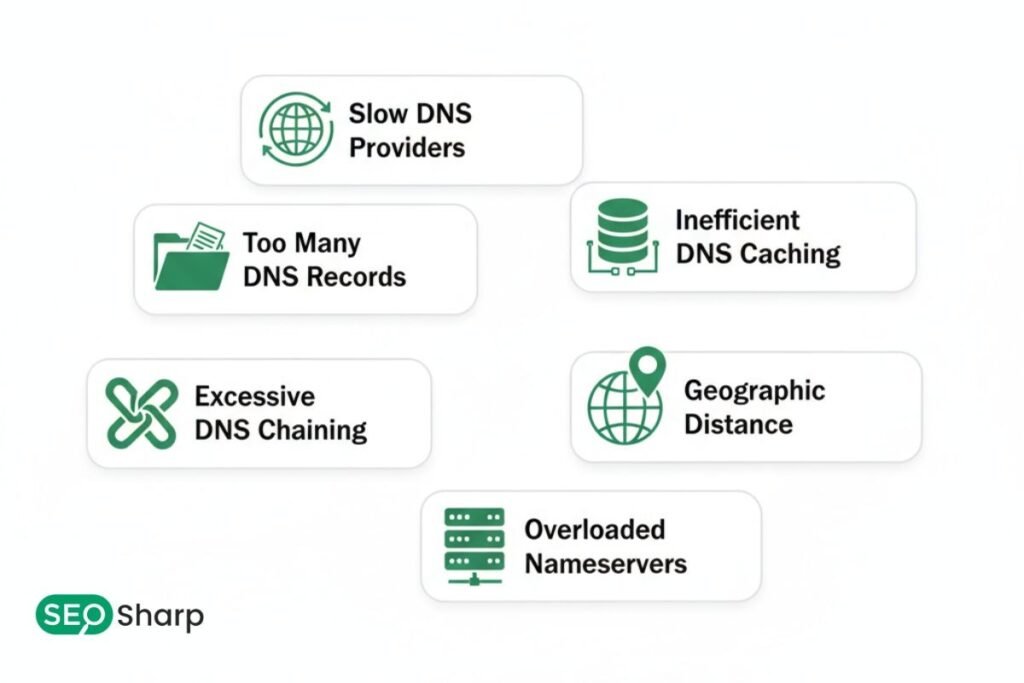
Google’s research shows that increasing page load time from 1 second to 3 seconds raises the bounce probability by 32%. DNS lookup delays are the primary culprit behind this lag.
Hidden Reasons for Slow DNS:
- Keep-Alive Configuration: If your server disables “Keep-Alive” headers the browser performs a fresh DNS lookup for every single image script and font on your page. This multiplies the total lookup time.
- Virtual Adapter Conflicts: Software like Hyper-V or VirtualBox creates virtual network adapters. Systems often try to reach unreachable DNS servers through these adapters causing 10-15 second stalls.
- ISP Congestion: Default ISP resolvers often suffer from overload which spikes response times during peak hours.
NXDOMAIN Stalls and Resource Exhaustion
A common yet ignored cause of “slowness” is the NXDOMAIN (Non-Existent Domain) response. When an application tries to reach a dead link or a misconfigured tracking pixel the resolver works overtime trying to find a record that doesn’t exist.
High volumes of “negative” lookups can exhaust the resolver’s resources, slowing down legitimate traffic. Implementing “Negative Caching” helps by remembering that a domain doesn’t exist for a set period preventing redundant searches.
Measuring DNS Latency in Real World Environments
You should measure DNS lookup time from the user’s location. Server-side speed alone doesn’t tell the full story.
- Benchmarking Context: According to Google DNS delays typically account for 20-30% of the total page load time during a user’s first visit.
- Signal Analysis: If DNS is slow but TCP and TLS setups are fast the bottleneck exists solely at the DNS layer. If all three are slow the entire network connection is the problem.
Factors Involved in DNS Lookup Time
A DNS request travels through multiple layers of the networking stack:
- Geographical Distance: The physical distance between the user and the DNS server increases the Round Trip Time (RTT).
- Network Topology: Non-optimal routing or “Hairpinning” slows down the lookup.
- Endpoint Configuration: Misordered DNS server lists or outdated VPN settings in Windows or Linux.
- Computational Resources: The capacity of the DNS server to handle high Queries Per Second (QPS).
EDNS (Extension Mechanisms for DNS) and Routing Accuracy
Modern DNS utilizes EDNS Client Subnet (ECS). This feature allows a recursive resolver to pass a portion of your IP address to the authoritative server. Why does this matter for speed? It allows the server to give you an IP address for a server node that is geographically closest to you.
Without EDNS your DNS provider might send you to a server in London when you are sitting in New York causing massive latency during the actual content download.
Troubleshooting Slow DNS Problems
Fixing DNS issues requires a methodical approach to uncover the root cause.
1. Testing Network Performance
Start with the ping command to check network latency. $ ping -c 5 8.8.8.8 If the responses show “Packet Loss” or “High Jitter” the issue lies with the internet connection or the ISP. Next use traceroute to examine the delay at every network hop.
2. Testing DNS Application Performance
If the network is stable, check the application layer. On Linux and macOS dig (Domain Information Groper) is the premier tool. $ dig yourdomain.com This tool reveals exactly how many milliseconds the query took to resolve and displays the TTL values.
Modern Windows Diagnostics (PowerShell Method):
In corporate or managed environments PowerShell commands are more effective:
- Measure Exact Time: Measure-Command { Resolve-DnsName google.com } (This provides the exact millisecond count).
- Flush DNS Cache: Use ipconfig /flushdns or the PowerShell command Clear-DnsClientCache to clear “clogged” records.
Advanced Visual Diagnostics and Global Monitoring
While command-line tools provide data they lack “Global Context.” Using a visual diagnostic tool allows you to see if your DNS is slow only in a specific region or globally.
Look for propagation maps and latency heatmaps. These visuals help you determine if your Authoritative DNS provider has a “blind spot” in a specific region where your users are most active.
Manual DNS Fix Methods (Step-by-Step)
If you are on a personal computer and want to avoid technical commands use this manual method:
- IPv4 Manual Assignment: Go to network settings and switch “Automatic (DHCP)” to “Manual.”
- Preferred DNS Setup: Enter 1.1.1.1 (Cloudflare) for the “Preferred DNS” and 8.8.8.8 (Google) for the “Alternate DNS.”
- Visual Verification: Save and reconnect to the network. This moves you from the ISP’s “slow lane” to a global “fast lane.”
DNS Server Performance Benchmarking
If you suspect your DNS provider is slow, benchmarking is essential. DNS Performance and Benchmarking tools show how your server behaves under heavy load.
Shifting from a default ISP DNS to Cloudflare or Google can often boost speeds by up to 80% because these providers use global Anycast Networks.
Best Practices for Ensuring Fast DNS Performance
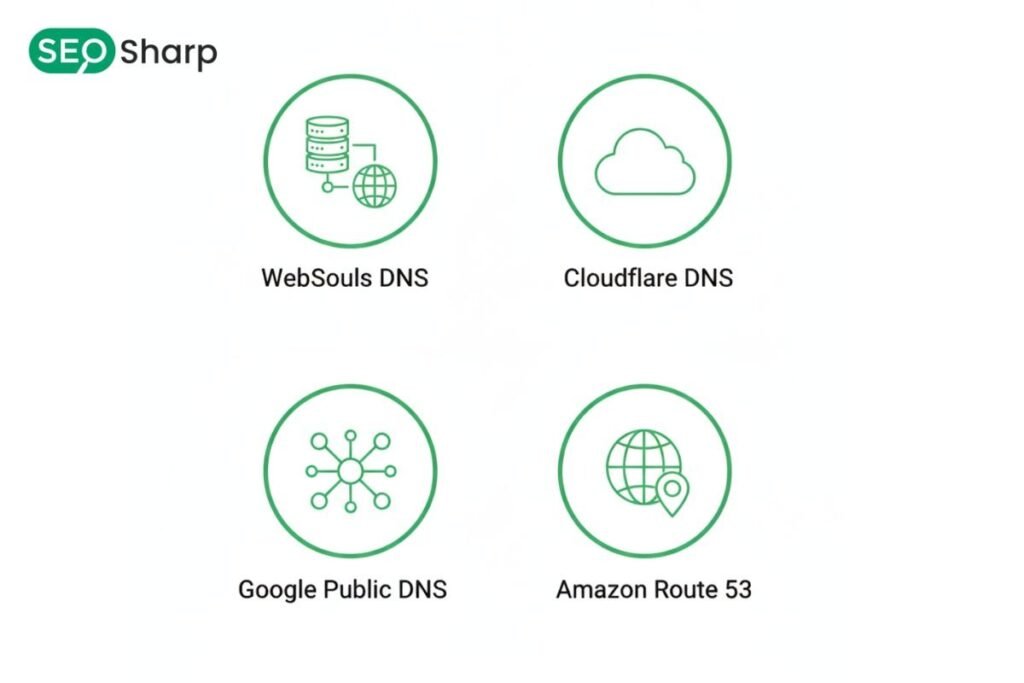
Implement these advanced strategies to optimize your infrastructure:
- Use CDN-Backed DNS: Choose providers with global server nodes so the resolver is always close to the user.
- CNAME Flattening: Avoid long chains of aliases. Return the direct IP to eliminate “Waterfall delays.”
- Strategic TTL (Time to Live) Management: Optimize TTL values. High TTLs (e.g. 3600 seconds) improve caching and reduce repeated lookups.
- DNS Prefetching: Add <link rel=”dns-prefetch” href=”//example.com”> to your website code. This tells the browser to resolve links before the user even clicks them.
Advanced Optimization for Enterprise IT
For large networks simply changing the DNS isn’t enough:
- Eliminating Bottlenecks: Use AI-driven RMM (Remote Monitoring and Management) platforms to reset DNS settings across entire departments with one click.
- Authoritative TTL Tuning: When managing a server keep TTL low (30-120 seconds) during migrations but increase it to 5-60 minutes during stable periods to cut recursive traffic by 50%.
Zero Rated DNS and Split Horizon Architectures
In enterprise environments use Split-Horizon DNS. This directs internal employees to an internal IP and external users to a public IP for the same domain.
This prevents internal traffic from traveling to the public internet and back shaving off milliseconds of unnecessary routing and reducing the load on your external DNS resolvers.
Summary of Key Concepts
DNS performance is the foundation of website speed. Slow DNS isn’t just a server problem; local configurations (Hyper-V) server headers (Keep-Alive) and routing also play major roles.
You must perform regular benchmarking and use modern diagnostic commands to remove these bottlenecks. Always target a sub-50ms lookup time to maintain top-tier user experience and SEO performance.
Conclusion
Fixing slow DNS lookups is a technical necessity that directly impacts your revenue and search engine rankings. Every step from manual DNS assignment to advanced PowerShell scripting strengthens your digital infrastructure.
If you want to monitor your domain’s global speed and health in real-time the SEOSharp DNS Lookup tool offers a perfect solution by converting complex data into easy-to-understand metrics.
FAQs
Will slow DNS lookups hurt my Google Search Console rankings?
Yes. DNS lookup is part of the “Initial Connection.” A slow response ruins your Largest Contentful Paint (LCP) score which is a major ranking factor.
Does deleting my browser history clear the DNS cache?
No. They are separate entities. You must use the ipconfig /flushdns command to clear the DNS cache.
How does a VPN affect DNS speed?
Most VPNs send DNS requests through encrypted tunnels adding latency. If speed is your priority, optimize the “DNS Leak Protection” settings in your VPN.
Can IPv6 cause slow DNS?
In some older systems IPv6 lookups are slower than IPv4. If you notice a delay try disabling IPv6 temporarily to troubleshoot the speed.
ISP DNS vs. Public DNS: Which is better?
In 90% of cases Public DNS (Cloudflare Google) wins because their anycast networks are more optimized than local ISP nodes.