
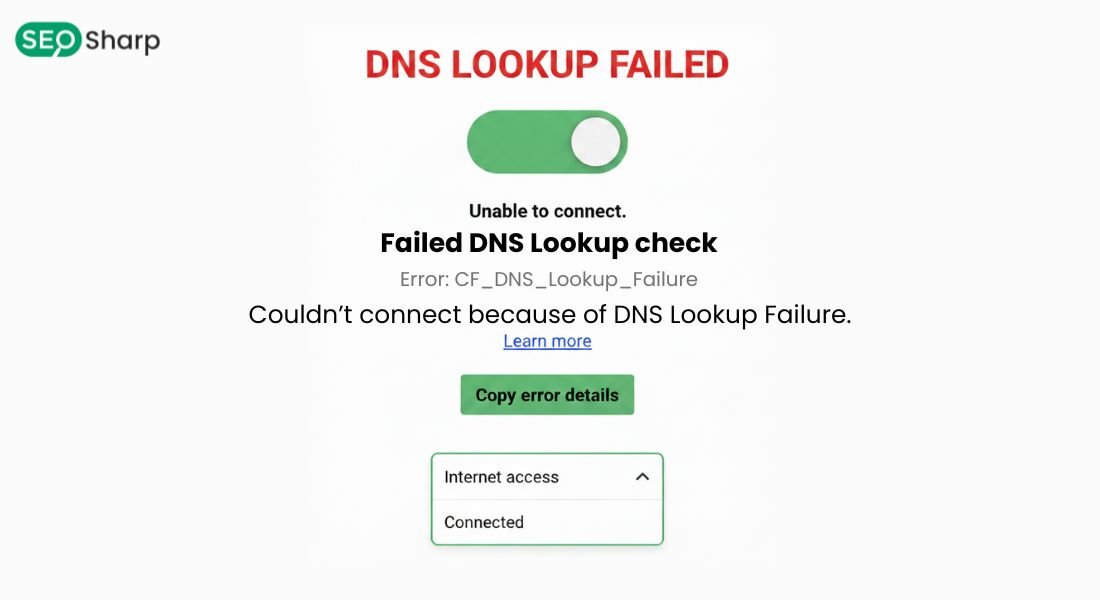
When a website refuses to load and your browser shows the message DNS lookup failed, the experience can be frustrating and confusing. Your internet connection may seem perfectly fine, yet the site simply will not open.
This error usually appears when your device cannot translate a website’s domain name into an IP address, which is a critical step for accessing any website. Tools like SEOSharp’s DNS lookup feature can help illustrate how this translation works and why failures occur.
In this article, you will learn what DNS lookup failure actually means, why it happens, and how to fix it step by step. We will walk through simple explanations of real-world causes and proven solutions so you can resolve the issue quickly and prevent it from happening again.
By the end, you will clearly understand how DNS works and how to troubleshoot DNS lookup failures with confidence using insights aligned with tools like SEOSharp web utilities.
What Does “DNS Lookup Failed” Mean?
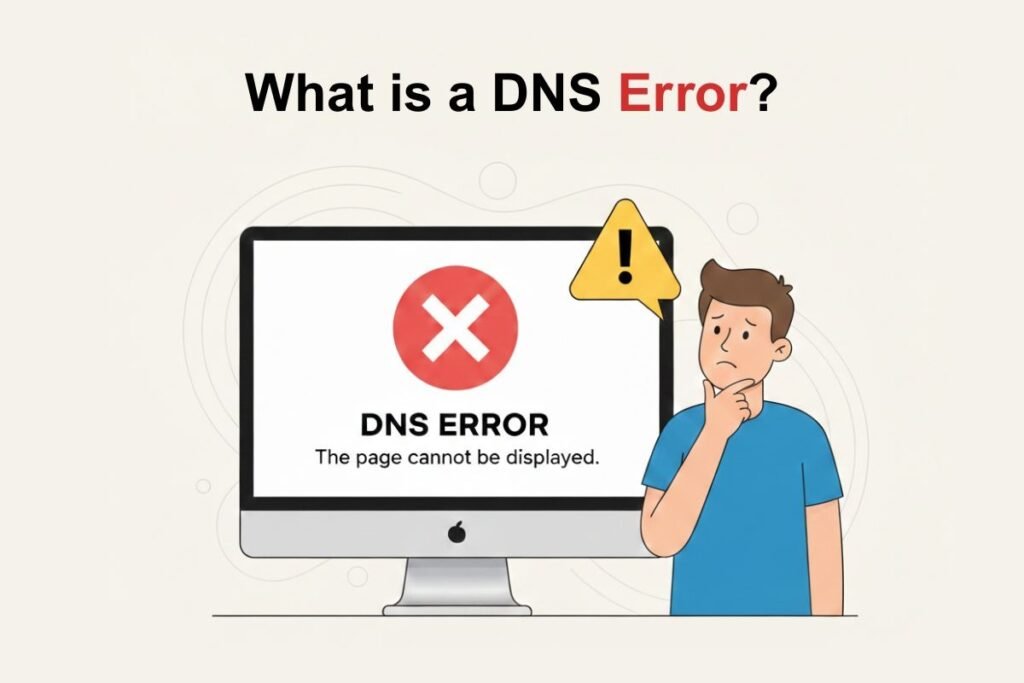
DNS lookup failed means your device tried to find the IP address of a domain name but could not complete the request. Every website on the internet has an IP address and the Domain Name System (DNS) acts like a phonebook that connects domain names to those IP addresses.
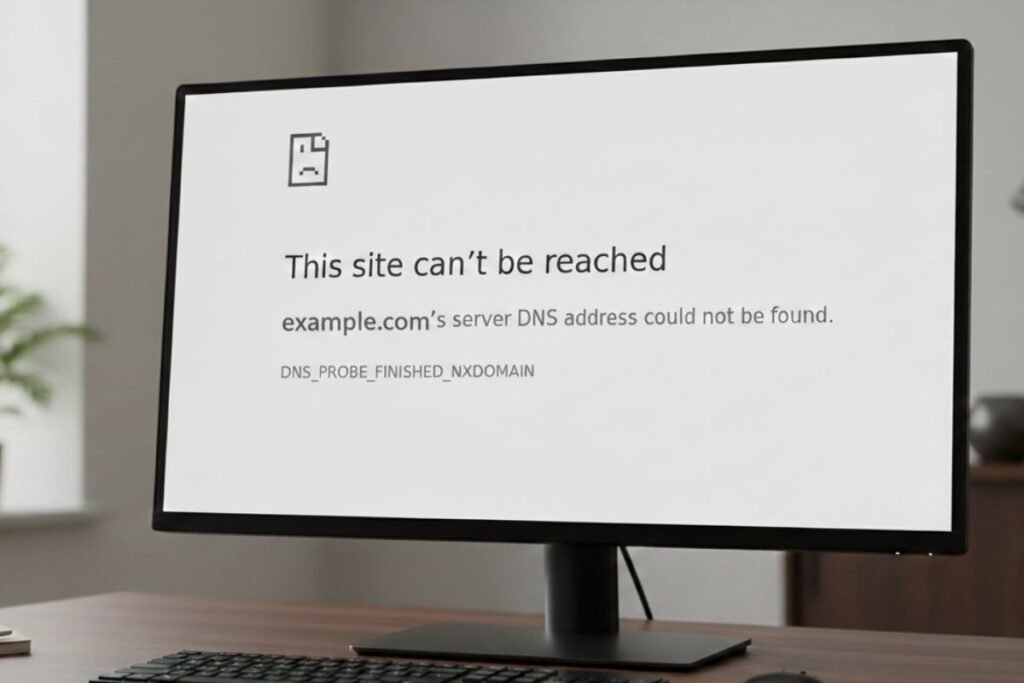
When DNS fails your browser cannot locate the server hosting the website even though the site itself may be working perfectly. As a result you see errors like DNS lookup failed server IP address could not be found or DNS_PROBE_FINISHED_NXDOMAIN.
This issue does not always mean the website is down. In many cases the problem exists on your device network browser or DNS server.
How DNS Works Behind the Scenes?
To fully understand DNS lookup failed errors it helps to know how DNS works. When you type a website address into your browser several steps happen in seconds. First your browser checks its local DNS cache to see if it already knows the IP address.
If it does not it asks the operating system. The operating system then queries a recursive DNS server usually provided by your internet service provider.
If the recursive server does not have the answer it contacts authoritative DNS servers responsible for that domain. Once the correct IP address is found it is sent back to your browser and the website loads. A DNS lookup failure happens when this chain breaks at any point.
Common Reasons Why DNS Lookup Failed Occurs?
DNS lookup failures happen for many reasons and identifying the exact cause is the key to fixing the issue permanently. One common reason is DNS server problems. If your ISP’s DNS server is slow overloaded or temporarily unavailable it may fail to resolve domain names correctly.
Another frequent cause is incorrect DNS configuration. Wrong DNS settings, outdated cached records or misconfigured routers can block proper DNS resolution. Network connectivity issues also play a role. Even if your internet seems active, unstable connections can interrupt DNS queries.
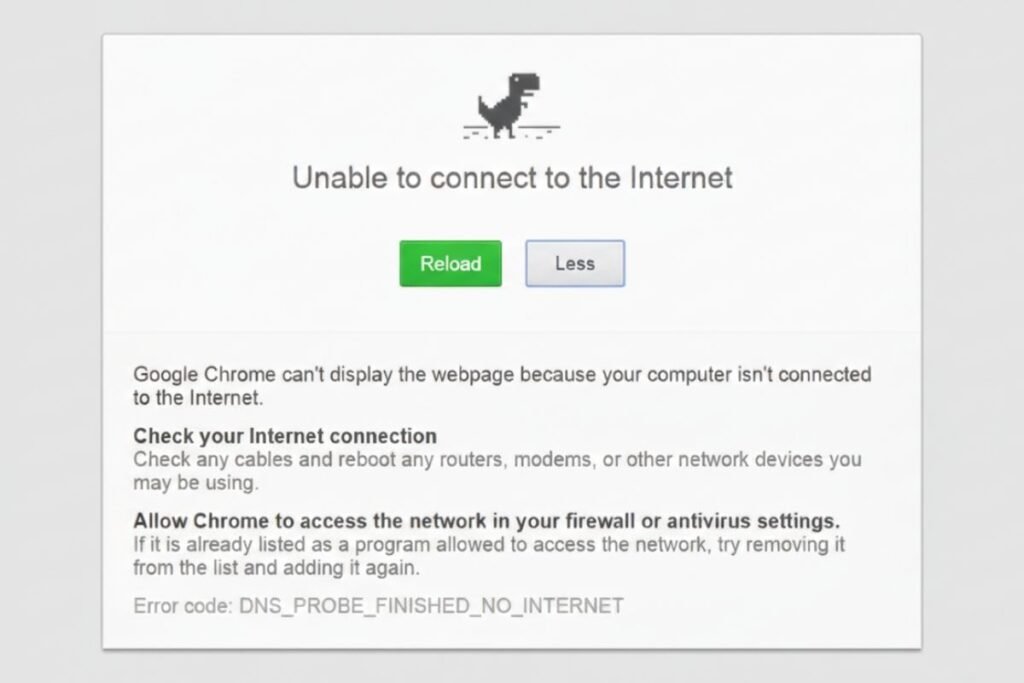
Sometimes the issue comes from browser related problems such as corrupted cache extensions interfering with requests or outdated browser versions. Security tools like firewalls VPNs or antivirus software may also block DNS requests causing lookup failures.
DNS Lookup Failed vs Similar DNS Errors
DNS lookup failed is often confused with other DNS-related errors but each one has a slightly different meaning. Errors like ERR_NAME_NOT_RESOLVED usually indicate that the domain name could not be resolved at all.
DNS server not responding suggests the DNS server failed to reply in time. DNS_PROBE_FINISHED_NXDOMAIN means the domain does not exist or DNS cannot find it.
Although the messages differ, the troubleshooting steps often overlap because they all relate to DNS resolution problems.
How to Fix DNS Lookup Failed on Any Device?
Fixing a DNS lookup failed error does not require advanced technical skills. Most solutions are simple and effective when applied correctly. The first step is to check your internet connection.
Restart your modem and router to refresh network settings and eliminate temporary glitches. Next clear your DNS cache. Cached DNS records sometimes become outdated or corrupted.
Clearing them forces your system to request fresh records. Changing your DNS server is another powerful solution.
Switching to public DNS services like Google DNS or Cloudflare DNS often resolves issues caused by unreliable ISP DNS servers. You should also disable VPNs or proxy settings temporarily.
These tools can interfere with DNS resolution especially if misconfigured. If the problem persists check firewall and security software settings. Ensure DNS traffic is not blocked.
Fixing DNS Lookup Failed on Windows
On Windows DNS lookup failures are often fixed by flushing the DNS cache which clears stored and sometimes outdated DNS records. Over time Windows saves DNS responses to speed up browsing but these cached entries can become corrupted or incorrect after network changes.
Flushing the cache forces the system to request fresh DNS information directly from the configured DNS server. Advanced users can also verify resolution using PowerShell DNS Lookup which helps confirm whether DNS queries are resolving correctly at the system level.
This step is useful when browsers fail but the network connection appears normal as it isolates whether the issue is DNS-related or application-specific.
Updating network drivers and resetting TCP/IP settings can resolve deeper network-level issues that are not fixed by cache clearing alone. In many cases changing the DNS server settings at the network adapter level to a reliable public resolver provides immediate improvement in stability and resolution speed.
Restarting the DNS Client service ensures that Windows can properly send, receive and process DNS queries. This step is especially helpful after system updates or configuration changes that may temporarily disrupt DNS services.
Fixing DNS Lookup Failed on macOS
Mac users may encounter DNS lookup failed errors due to cached records network profile conflicts or incorrect DNS resolver settings. Flushing the DNS cache removes outdated or conflicting entries and allows macOS to rebuild DNS resolution data from scratch which often resolves the issue immediately.
Checking system preferences for network settings and manually assigning reliable DNS servers helps prevent recurring problems caused by unstable or slow ISP-provided resolvers. This step is particularly useful for users who frequently switch between Wi-Fi networks or use public connections.
macOS users should also ensure that no conflicting VPN profiles, security filters or network extensions are active. These tools can silently override DNS settings and block requests even when the internet connection itself appears to be working normally.
Fixing DNS Lookup Failed on Linux
Linux systems rely heavily on DNS configuration files and background services to handle name resolution. A DNS lookup failure may result from incorrect resolver settings, broken symbolic links or misconfigured network manager services that prevent DNS queries from reaching the correct servers.
Restarting networking services refreshes DNS handling processes and clears temporary conflicts. Updating resolver configuration files and verifying assigned DNS servers ensures that queries are sent to valid and reachable resolvers.
Linux users should also check firewall rules and packet filtering settings that might block DNS traffic on port 53. In many cases DNS failures occur not because of incorrect DNS servers but because outbound DNS requests are restricted at the system or network level.
Browser Specific Causes of DNS Lookup Failed
Sometimes the issue exists only in one browser even though the system and network are functioning correctly. Corrupted browser cache outdated DNS entries or misbehaving extensions can interfere with DNS resolution and cause lookup failures.
Clearing the browser cache removes stored DNS and site data that may conflict with updated records. Disabling extensions especially VPNs ad blockers or privacy tools helps identify whether they are blocking DNS requests.
Resetting browser settings restores default network behavior which often resolves persistent DNS errors. Testing the same website in another browser helps confirm whether the issue is browser-specific or affects the entire system.
DNS Lookup Failed for Website Owners
For website owners DNS lookup failed errors usually stem from misconfigured DNS records rather than user-side problems. Incorrect A records missing nameserver entries or expired domains can prevent users and search engines from resolving the site correctly.
DNS propagation delays can also trigger temporary DNS lookup issues after changes are made. During this period some users may reach the website while others cannot depending on how quickly DNS updates spread across global resolvers.
Using the DNS Resolve Command allows administrators to validate DNS changes before they impact users. This helps confirm that records are resolving correctly across different locations.
Regular DNS audits monitoring and alerts help detect configuration issues early and prevent downtime that could affect traffic conversions and search visibility.
How DNS Lookup Failed Impacts SEO and User Experience
DNS reliability plays a critical role in SEO because search engines must resolve your domain before they can crawl or index your pages. If DNS lookup failures occur frequently search engines may treat your site as unstable which can negatively affect rankings and crawl frequency.
From a user experience perspective DNS lookup failures quickly erode trust. Users expect websites to load instantly and repeated DNS errors increase bounce rates and reduce engagement.
Reliable DNS infrastructure improves performance uptime and overall site credibility benefiting both users and search engines in the long term.
Advanced DNS Scenarios and Commands
Some DNS failures are not related to basic website access but instead involve service records, email authentication or internal network validation. Misconfigured DNS entries can cause partial failures where a site loads but related services break.
Advanced troubleshooting may involve the Reverse DNS Lookup Command, DNS TXT Lookup or DNS SRV Lookup which help verify server identity email authentication records and service discovery configurations.
For performance-focused issues users often search for How to Fix Slow DNS Lookup which targets delayed resolution rather than complete failure and focuses on optimization techniques.
Visualizing the DNS Resolution Process
Many users struggle to understand DNS because it operates entirely in the background. A DNS Lookup Flow Diagram Labelled visually explains how requests travel from the browser to recursive DNS servers and then to authoritative sources.
Visual explanations make complex processes easier to understand, helping users troubleshoot logically instead of feeling overwhelmed by technical terminology.
Finding and Verifying DNS Configuration
A common question during troubleshooting is How to Find My DNS Server? Knowing which DNS resolver your system uses helps identify whether issues originate from local configuration of the router or an external provider.
Verifying DNS configuration ensures that requests are routed to reliable servers and are not intercepted, blocked or misdirected by intermediate systems such as VPNs or firewalls.
Preventing DNS Lookup Failed Errors in the Future
Prevention is always more effective than repeated troubleshooting. Using reliable DNS providers reduces the likelihood of outages, slow resolution and inconsistent performance.
Keeping operating systems routers and network devices updated prevents bugs and configuration conflicts that can disrupt DNS resolution. Monitoring DNS performance and periodically clearing cache helps maintain long-term stability.
Website owners should choose reputable DNS hosts to validate changes carefully and ensure correct configuration at all times.
Why DNS Lookup Failed Errors Are So Common?
DNS lookup failed errors are common because DNS is a foundational layer of internet communication. Even small misconfiguration delays or interruptions can break the resolution process entirely.
As networks become more complex with VPNs cloud services and security layers DNS reliability becomes even more critical. Understanding how DNS works empowers users to identify issues quickly and apply the correct fix instead of relying on guesswork.
Conclusion
DNS lookup failed errors may seem technical, but they usually follow clear and predictable patterns. Once you understand how DNS works and where failures occur, troubleshooting becomes faster and more effective.
Simple steps like checking your connection, clearing the DNS cache, switching DNS servers and reviewing security settings can resolve most DNS lookup issues within minutes. For website owners, clean DNS records and reliable providers ensure smooth access for both users and search engines.
To simplify the process, SEOSharp’s DNS Lookup tool helps you quickly analyze DNS records, identify misconfigurations and confirm resolution issues in real time. With the right knowledge and the support of SEOSharp web tools, DNS problems turn from frustrating errors into confidently solvable tasks.
FAQs
What causes DNS lookup failed errors most often?
DNS lookup failed errors usually happen due to DNS server issues, corrupted cache, incorrect network settings or interference from VPNs and firewalls.
Can DNS lookup fail be caused by a website itself?
Yes, misconfigured DNS records expired domains or propagation delays on the website’s side can trigger DNS lookup failures.
Is changing DNS servers safe?
Yes, using trusted public DNS servers like Google or Cloudflare is safe and often improves speed and reliability.
Why does DNS lookup fail happen on one device only?
Device-specific cache issues, network settings or security software can cause DNS failures on one device while others work normally.
Does DNS lookup failure affect SEO rankings?
Yes if search engines cannot resolve your domain consistently it can negatively impact crawling indexing and rankings.
How long does DNS propagation take?
DNS propagation usually takes a few minutes to 48 hours depending on TTL values and global DNS updates.
Can browser extensions cause DNS lookup failures?
Yes some extensions interfere with network requests and DNS resolution especially VPN or privacy-related extensions.
Is DNS lookup a security risk?
The error itself is not a security threat but misconfigured DNS can expose sites to downtime and trust issues.
Should website owners monitor DNS performance?
Yes DNS monitoring helps detect outages early and ensures consistent availability for users and search engines.
Can restarting the router fix DNS lookup failed?
In many cases restarting the router refreshes DNS settings and resolves temporary network-related DNS issues.