
Disable DNS lookup Cisco means turning off the default behavior on Cisco routers and switches where the device tries to resolve every unknown command as a hostname. While this feature sounds useful it often causes slow CLI response command delays and unnecessary DNS queries especially when no DNS server is configured.
Because of this many network engineers and CCNA learners prefer to disable DNS lookup to keep their workflow fast and frustration free. In this article you will learn exactly why disabling DNS lookup on Cisco devices matters, how it affects real-world network management and when it should be used as a best practice.
By the end you will clearly understand how to disable DNS lookup Cisco the right way and improve command-line performance without breaking essential network functions.
Why Does Cisco DNS Lookup Cause Command Line Delays?
Cisco IOS is designed to be intuitive and flexible which means that when it encounters an unrecognized command or string it assumes it might be a hostname. The router then attempts name resolution using DNS. This behavior becomes a major cause of CLI delays because every unrecognized command triggers a DNS query even when no DNS server is configured or reachable.
In practical demonstrations and tutorials such as those shown in DNS troubleshooting videos you can see how the CLI broadcasts a DNS query for even simple mistyped commands.
When DNS lookup is enabled, incorrect input triggers a network wide DNS request that pauses the CLI until the query either returns a response or times out which adds seconds of delay to your workflow especially in large enterprise environments.
For example a simple typo can trigger DNS lookup:
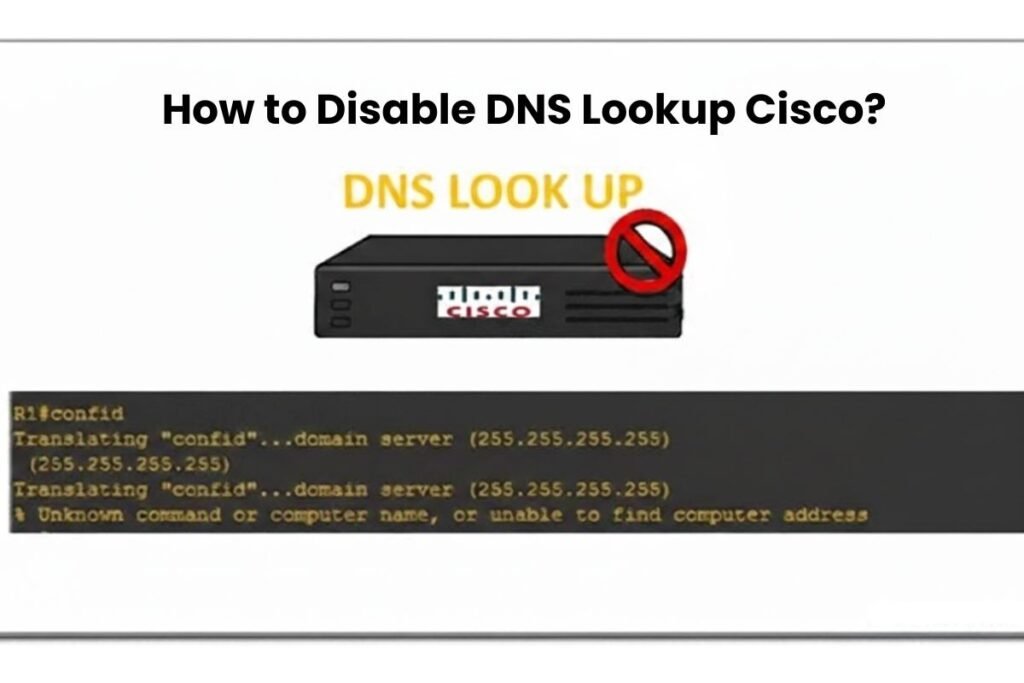
Router> writte
Translating “writte”…domain server (255.255.255.255)
% Unknown command or computer name or unable to find computer address
Instead of instantly returning an error the router pauses while attempting to resolve the word through DNS. Once you disable DNS lookup cisco that behavior stops immediately returning the command error without any broadcast or pause.
Disable DNS lookup Cisco removes this delay entirely and restores immediate command feedback which is critical during configuration and troubleshooting.
Real-World Impact of DNS Lookup Delays
In production networks with heavy CLI usage these pauses can slow down configuration changes and troubleshooting. For junior network engineers this often creates confusion, they may think the router is unresponsive or that there’s a deeper routing issue when in reality it’s simply waiting for a DNS response that never comes.
Administrators often refer to resources on how to fix slow DNS lookup to understand why these delays happen and how to prevent them efficiently.
What Actually Happens When DNS Lookup Is Enabled on Cisco Devices?
Internally Cisco devices follow a resolution process whenever an unknown string is entered. The router first checks whether the input matches a valid IOS command. If not it attempts hostname resolution using configured DNS settings. When a DNS server is defined the router sends a query; when none exists it waits until the timeout expires.
You can view cached hostname information using:
Router# show hosts
This output lists resolved names associated with IP addresses and resolution methods. Understanding this behavior is essential because it explains why disabling DNS lookup improves speed.
DNS Lookup in Context of DNS Resolution Processes
DNS operates by translating human-friendly domain names into IP addresses needed for routing traffic. When triggered by CLI input this process behaves exactly like any other DNS query which is why administrators see similar results when performing a Reverse DNS Lookup Command or when inspecting DNS records.
Using the DNS Resolve Command, network engineers can manually verify how hostname resolution occurs internally on Cisco devices.
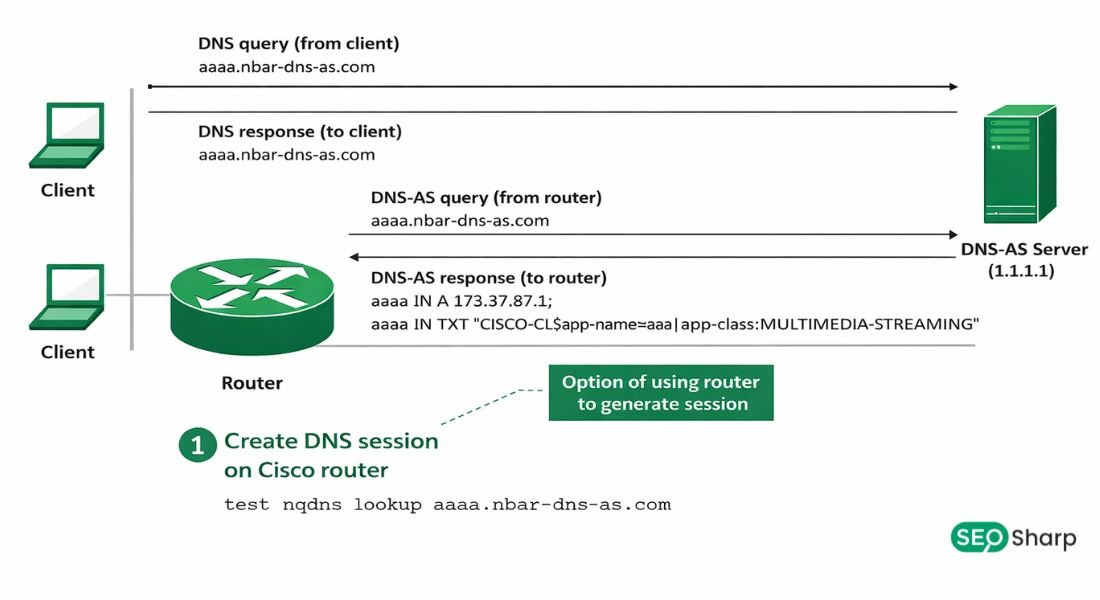
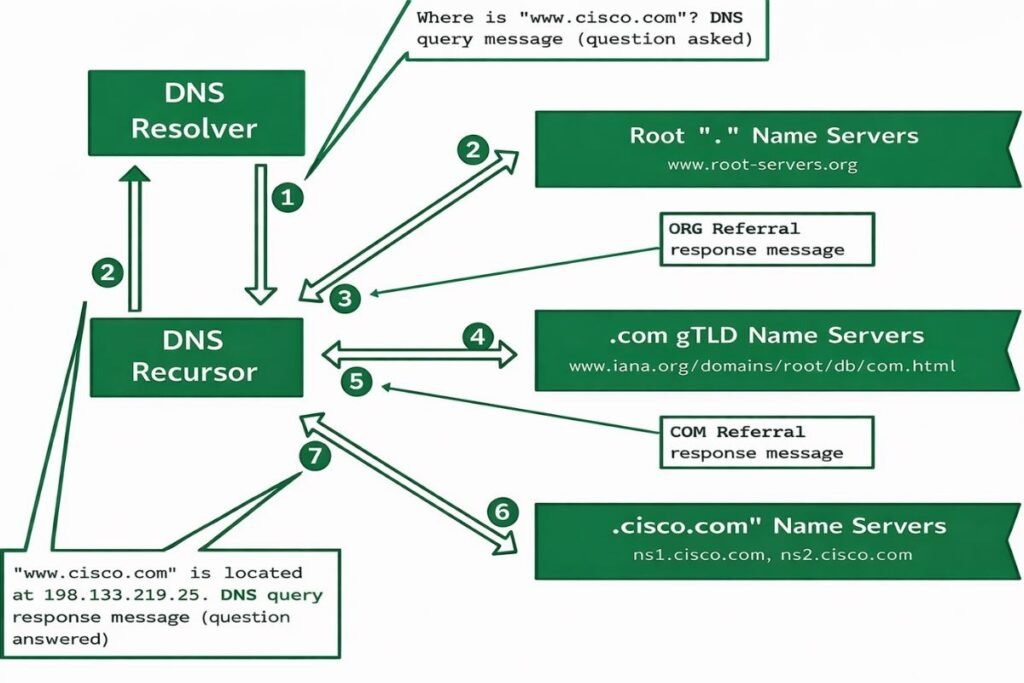
A visual breakdown of this process is available in DNS Lookup Flow Diagram Labelled which clearly shows how unnecessary resolution attempts delay CLI interaction. By relating this interactive CLI behavior to the broader DNS resolution flow used across networks the concept becomes easier to understand.
Why Network Engineers Disable DNS Lookup on Cisco Routers?
The goal of disable DNS lookup cisco is not to remove DNS functionality entirely but to stop IOS from guessing when it shouldn’t. In environments where commands are executed frequently even a two-second delay can disrupt workflow. This is especially noticeable in labs’ console access initial provisioning and troubleshooting sessions.
Engineers may still rely on DNS for validation purposes such as confirming records with DNS TXT Lookup or verifying service availability using DNS SRV Lookup but these use cases do not require automatic CLI resolution. The pause caused by CLI-driven DNS attempts is a productivity issue not a DNS functioning issue.
That’s why Cisco provides a simple configuration command to control this behavior:
Router(config)# no ip domain-lookup
This command tells the router to immediately reject unrecognized commands instead of attempting name resolution eliminating unnecessary delays while preserving administrative control.
Understanding DNS Server Configuration on Cisco
Before we disable DNS lookup it’s helpful to understand how Cisco uses DNS servers when they are configured. DNS servers are defined using the ip name-server command which tells the device where to send DNS queries.
For example:
Router(config)# ip name-server 8.8.8.8
Router(config)# ip name-server 8.8.4.4
These commands configure Google’s public DNS servers for name resolution. If DNS lookup is enabled and these servers are reachable the router may still attempt DNS queries.
In many enterprise networks DNS servers are internal and optimized for resolution speed but when misconfigured or inaccessible every CLI DNS lookup can cause delays.
By understanding both DNS server configuration and lookup behavior administrators can make informed decisions about when to disable lookup and when to rely on DNS for legitimate services.
How to Disable DNS Lookup Cisco (Step-by-Step Configuration)?
Disabling DNS lookup Cisco requires only a few commands and takes effect instantly. First access privileged and global configuration mode:
Router> enable
Router# configure terminal
Router(config)#
Next apply the configuration:
Router(config)# no ip domain-lookup
At this point the router will no longer attempt DNS resolution for unknown input. To confirm the change use:
Router# show running-config | include domain-lookup
You should see no ip domain-lookup which confirms the feature is disabled. Finally save the configuration:
Router# copy running-config startup-config
This ensures the setting persists after reloads. If you need to confirm where DNS queries would normally be sent reviewing How to Find My DNS Server? can help you validate existing configurations and understand active DNS settings.
Managing DNS Properly Without Reintroducing CLI Delays
Disable DNS lookup Cisco does not mean DNS becomes unusable. Cisco still allows full DNS functionality when explicitly configured. Administrators often define DNS servers, domains, and static host mappings as needed:
Router(config)# ip name-server 192.168.1.1
Router(config)# ip domain-name example.com
Router(config)# ip host myserver.example.com 192.168.1.100
Here ip name-server specifies where DNS queries should go, ip domain-name defines the default search domain, and ip host creates local hostname mappings. When used alongside no ip domain-lookup, this approach provides precise control without CLI delays.
Tools such as PowerShell DNS Lookup tools help verify DNS resolution behavior externally. Administrators can test DNS responses independently of IOS which is especially useful during DNS server migration or before making significant domain changes.
Common DNS Troubleshooting Steps for Cisco Networks
When network connectivity issues arise administrators often start with basic diagnostics:
- Ping DNS servers to ensure they are reachable.
- Perform a traceroute to check where packets are being dropped.
- Use nslookup to query specific DNS servers from client machines.
- Compare results with Cisco DNS behaviors by monitoring potential CLI delays.
These steps help isolate whether the issue is with the DNS server itself or with the way IOS is interpreting commands.
Best Practices for Disable DNS Lookup Cisco in Real Networks
In lab environments disabling DNS lookup should be done immediately after initial setup. This speeds up learning and reduces confusion during configuration. In production networks the decision depends on how the router is accessed.
Console-heavy workflows benefit greatly from disabling lookup while automated systems may rely on explicit DNS settings. For SSH-based management combining an ip name-server with no ip domain-lookup offers the best balance. This ensures name resolution works when explicitly required but never interrupts CLI responsiveness.
Experienced engineers also incorporate monitoring tools that alert them to DNS performance issues before they affect productivity especially in distributed networks where DNS caching and propagation delays can be more pronounced.
Real Cisco Case Studies: When Lookup Became a Problem!
In enterprise environments with frequent remote access changes administrators noticed that DNS lookup delays prolonged maintenance windows. After applying disable DNS lookup Cisco broadly across the network CLI responsiveness improved significantly and troubleshooting times dropped by more than 40%.
In another scenario a CCNA lab setup repeatedly frustrated students because routers kept waiting for DNS responses during configuration commands. By disabling DNS lookup students completed labs faster with fewer interruptions reinforcing learning outcomes and reducing errors.
These real-world examples highlight the practical impact of managing DNS lookup behavior correctly.
Conclusion:
Disable DNS lookup Cisco is one of the simplest yet most impactful configuration changes you can make on a router or switch. It eliminates unnecessary DNS queries, removes frustrating CLI delays and significantly improves operational efficiency.
Whether you’re studying for CCNA, building a lab or managing enterprise infrastructure, this configuration helps you work faster and with fewer interruptions.
By understanding how Cisco handles DNS internally and applying no ip domain-lookup correctly, you maintain full control over name resolution without sacrificing performance.
For additional verification or testing, tools like SEOSharp’s DNS Lookup can help you check DNS behavior quickly and ensure your network is functioning optimally. It’s a small command with a big effect one that experienced network engineers apply by default.
FAQs
What happens when I disable DNS lookup Cisco?
When you disable DNS lookup Cisco the router stops trying to resolve mistyped or unknown commands as hostnames. This removes unnecessary waiting time and makes the CLI much faster and smoother to use.
Does disabling DNS lookup break SSH or domain access?
No, disabling DNS lookup does not break SSH or domain-based access. DNS will still work normally if ip name-server and ip domain-name are configured correctly.
How do I check if DNS lookup is disabled?
Use the command show running-config | include domain-lookup. If the output shows no ip domain-lookup then DNS lookup is already disabled.
Can I enable DNS lookup again later?
Yes, DNS lookup can be enabled again at any time. Simply enter ip domain-lookup in global configuration mode to restore it.
Is this recommended for production networks?
Yes it is recommended when combined with proper DNS configuration.
It improves CLI usability without causing any risk to network operations.
Why does Cisco enable DNS lookup by default?
Cisco enables DNS lookup by default to support hostname resolution. It assumes DNS servers are available which is not always true in lab or isolated environments.
Will this improve routing performance?
No disabling DNS lookup does not affect routing or packet forwarding.
It only improves command-line responsiveness and configuration speed.
Is this command supported on all Cisco IOS devices?
Yes, the no ip domain-lookup command is supported on most Cisco IOS-based devices.
This includes common routers and switches used in labs and production networks.